Programmatically convert MS Project to PDF in C# with the Aspose.Tasks for .NET API for just $99! This step-by-step guide shows how to export project data from MS Project MPP to PDF format easily using the best C# .NET library for MS Project PDF conversion.
December 10, 2023 · 6 min · Muzammil Khan
{< figure align=center src=“images/convert-ms-project-to-pdf-in-csharp.jpg” alt=“Convert MS Project to PDF in C#">}}
Are you searching for a reliable method to convert MS Project files to PDF format using the convert MS Project to PDF C# method without needing Microsoft Project? You’ve come to the right place! This guide will walk you through the process of C# convert .mpp to PDF converting MS Project to PDF in C# effortlessly, using the Aspose .NET Library for MS Project to PDF.
Microsoft Project is an essential tool for teams to organize projects, track progress, and clarify roles. However, there are times when you need to convert a Microsoft Project document into a PDF file—whether it’s for contract proposals or easy access during offsite meetings.
In today’s digital landscape, PDF has become the preferred format for sharing and storing documents. Exporting project data, MS Project PDF export without Microsoft Project, from MS Project files to PDF allows you to share critical information—such as tasks, resources, assignments, timelines, and budgets—in a portable format. Let’s explore how to achieve this programmatically in C# using the Aspose .NET MSP to PDF Converter.
To convert MS Project to PDF, using the MS Project to PDF conversion tool, we will utilize the Aspose.Tasks for .NET Aspose Project to PDF library API. This powerful library enables you to read and write various file formats without requiring Microsoft Project to be installed. It also ensures high-performance C# .NET MS Project to PDF conversion, making it an excellent choice for your project needs.
Aspose.Tasks for .NET is a comprehensive class library that offers a wide range of functionalities, including working with projects, formulas, calendars, tasks, and resource assignments. For detailed information on the available classes and methods, refer to the API references.
## Convert MS Project to PDF using C# {#Convert-MS-Project-to-PDF-using-CSharp}

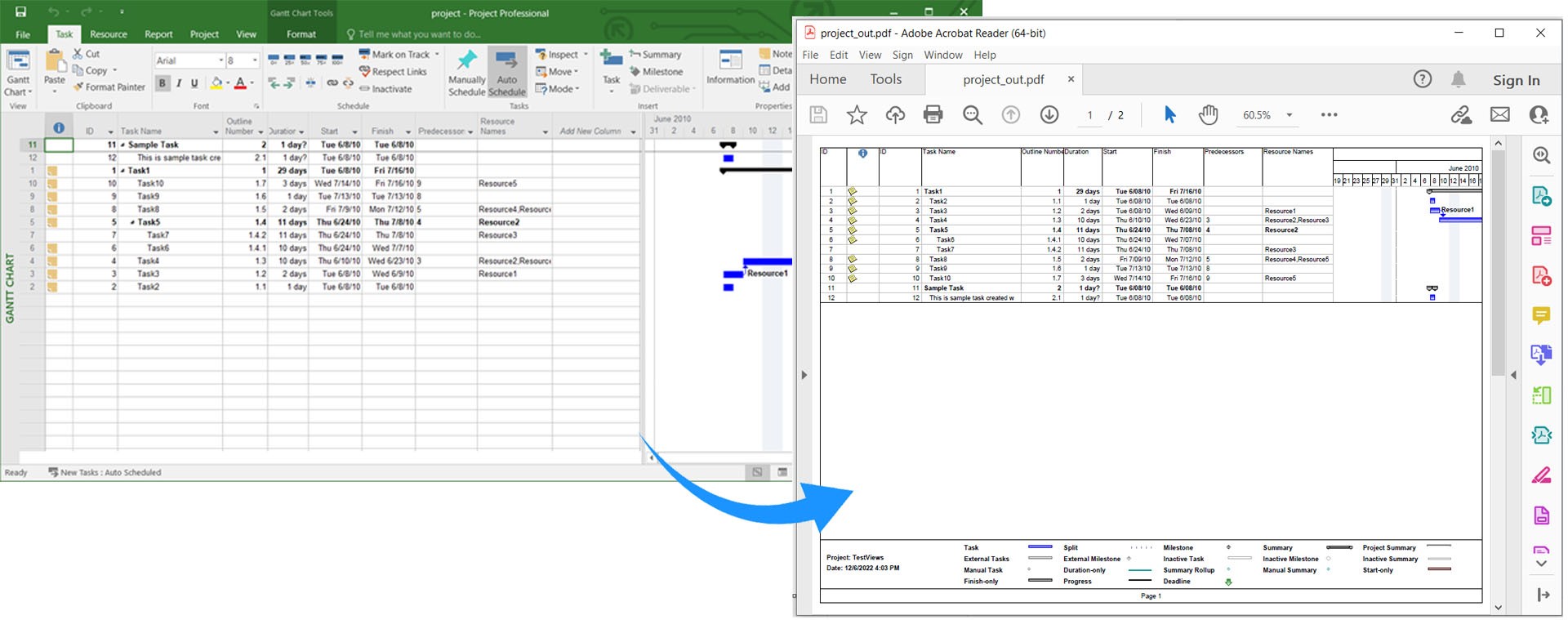
Converting all project data from MS Project to a PDF is straightforward. Follow these simple steps:

1. Load the MS Project file using the **Project** class.
2. Save the file as a PDF using the **Save()** method, specifying the output PDF file path and **SaveFileFormat.Pdf** as arguments.

Here’s a sample code snippet demonstrating **how to convert MS Project to PDF in C#**:


            Convert MS Project to PDF using C#.


## Export Specific MS Project View to PDF in C# {#Export-Specific-MS-Project-View-to-PDF-in-CSharp}

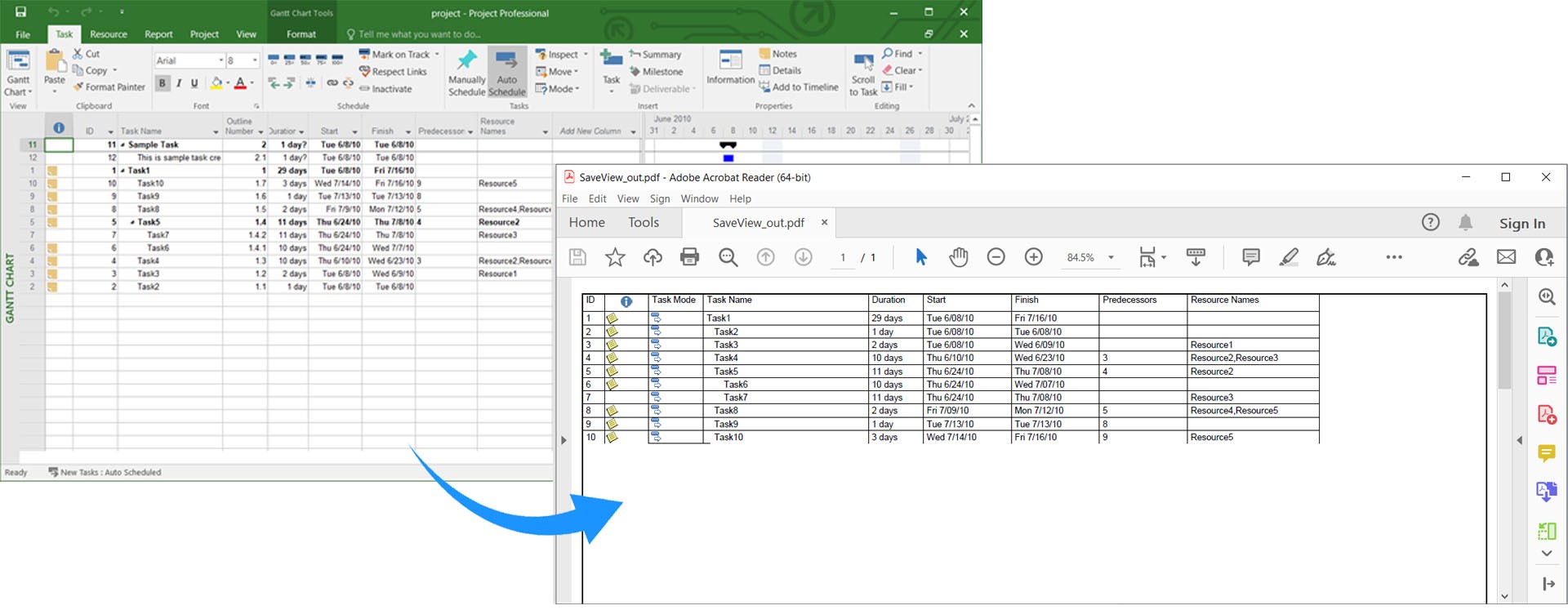
Microsoft Project provides various views to display project information, such as Gantt Chart and Resource Usage. To export a specific view to PDF, follow these steps:

1. Load the MS Project file using the **Project** class.
2. Create an instance of the **PdfSaveOptions** class.
3. Specify the desired **PresentationFormat**.
4. Finally, call the **Save()** method with the output PDF file path and the **PdfSaveOptions**.

Here’s how to **export any specific MS Project View to PDF in C#**:


            Export Specific MS Project View to PDF in C#.


## Fit Content to Cell and Convert MS Project to PDF in C# {#Fit-Content-to-Cell-and-Convert-MS-Project-to-PDF-in-CSharp}

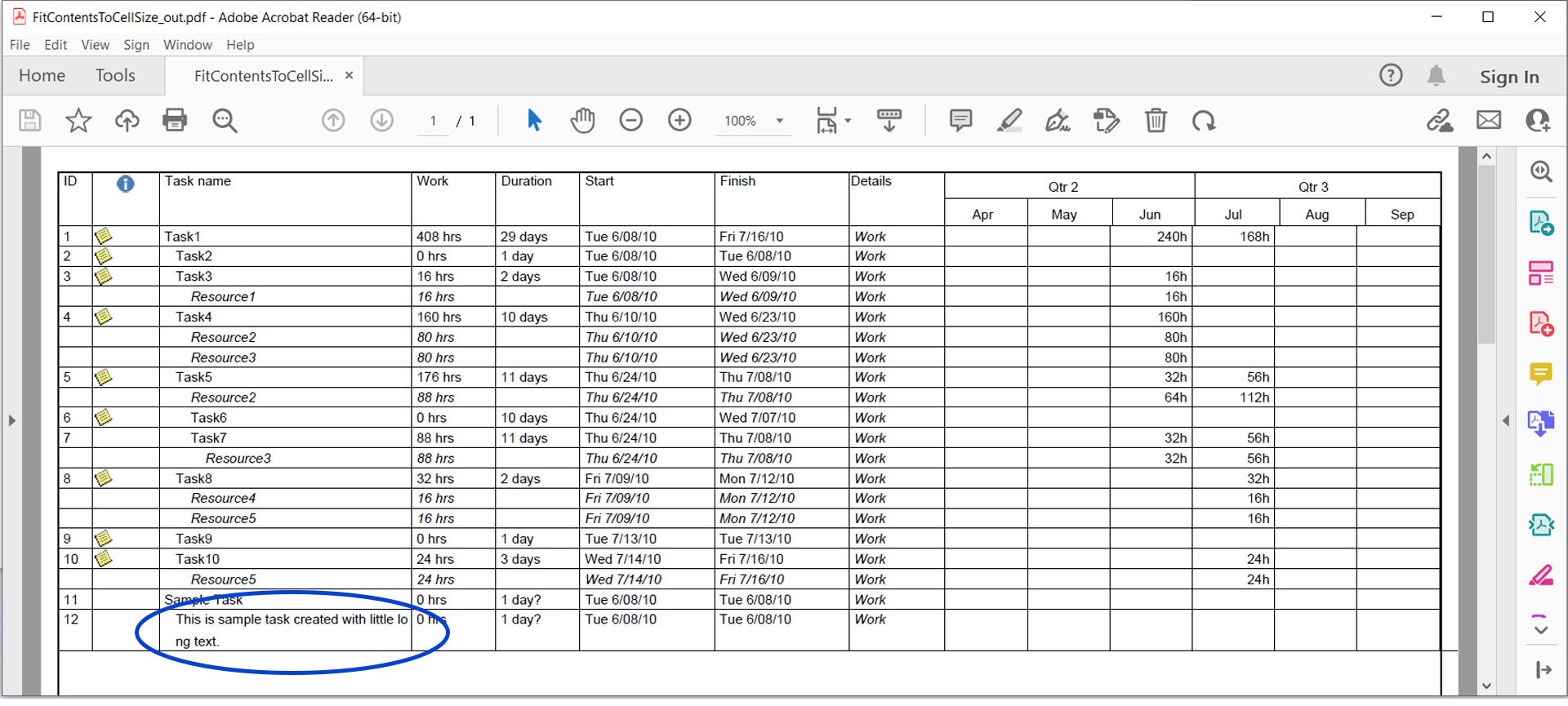
To prevent truncation of long text in fields such as names, you can fit content to the cell before converting to PDF. Here’s how:

1. Load the MS Project file using the **Project** class.
2. Create an instance of the **PdfSaveOptions** class.
3. Set **FitContent** to *true*.
4. Call the **Save()** method with the output PDF file path and **PdfSaveOptions**.

Here’s a code example demonstrating **how to fit content to cells and convert MS Project to PDF in C#**:


            Fit Content to Cell and Convert MS Project to PDF.


## Convert MS Project to PDF without Legends in C# {#Convert-MS-Project-to-PDF-without-Legends-in-CSharp}

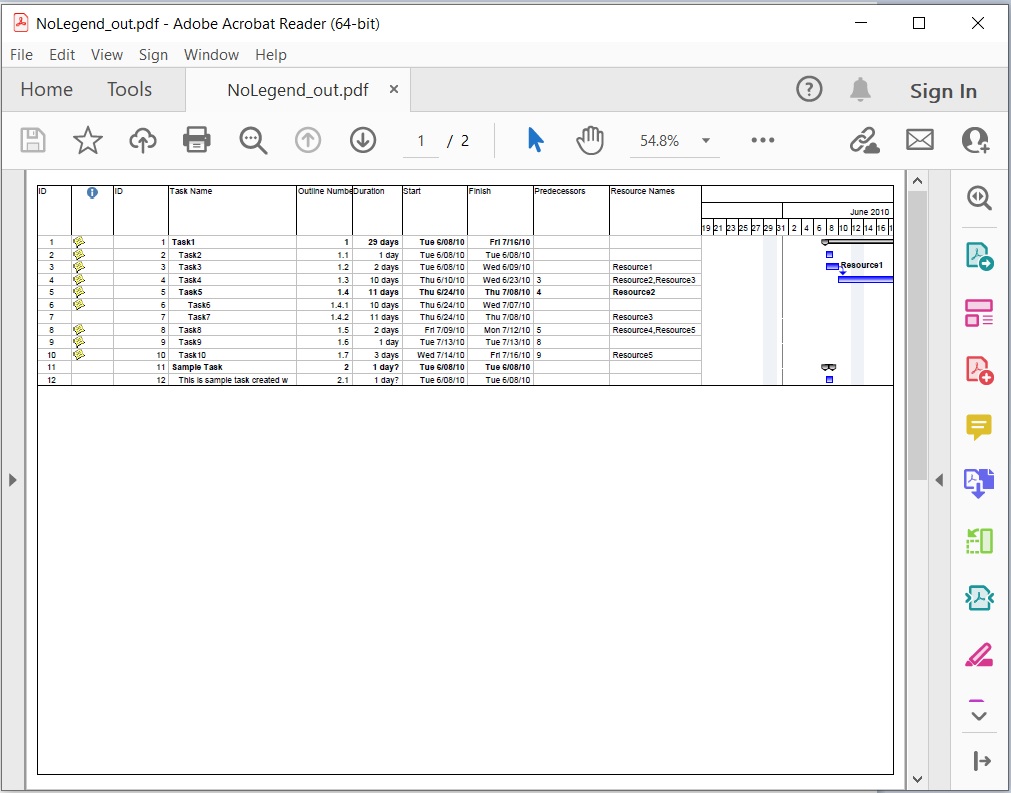
By default, legends appear on all pages in MS Project. To hide them, follow these steps:

1. Load the MS Project file using the **Project** class.
2. Create an instance of the **PdfSaveOptions** class.
3. Set **LegendOnEachPage** to *false*.
4. Call the **Save()** method with the output PDF file path and **PdfSaveOptions**.

Here’s how to **convert MS Project MPP to PDF without legends in C#**:


            Convert MS Project to PDF without Legends.


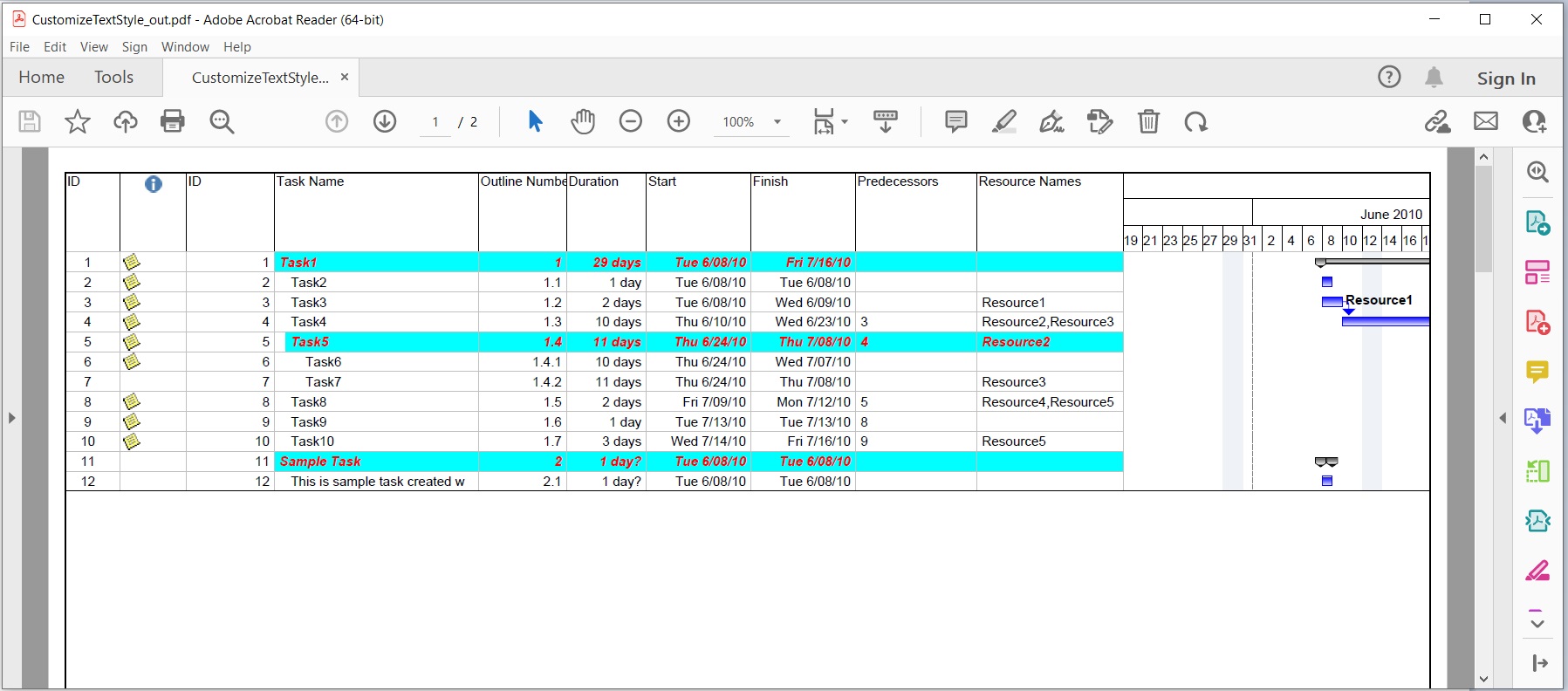
## Customize Text Style and MS Project Export to PDF in C# {#Customize-Text-Style-and-Convert-MS-Project-to-PDF-in-CSharp}

You can customize the text style when rendering MS Project into PDF by following these steps:

1. Load the MS Project file using the **Project** class.
2. Create an instance of the **PdfSaveOptions** class.
3. Instantiate the **TextStyle** class.
4. Set the **Color**, **Font**, and **ItemType** properties.
5. Add the **TextStyle** to the **TextStyles** list.
6. Finally, call the **Save()** method with the output PDF file path and **PdfSaveOptions**.

Here’s a code example for **customizing the text style when converting MS Project to PDF in C#**:


            Customize Text Style and Convert MS Project to PDF.


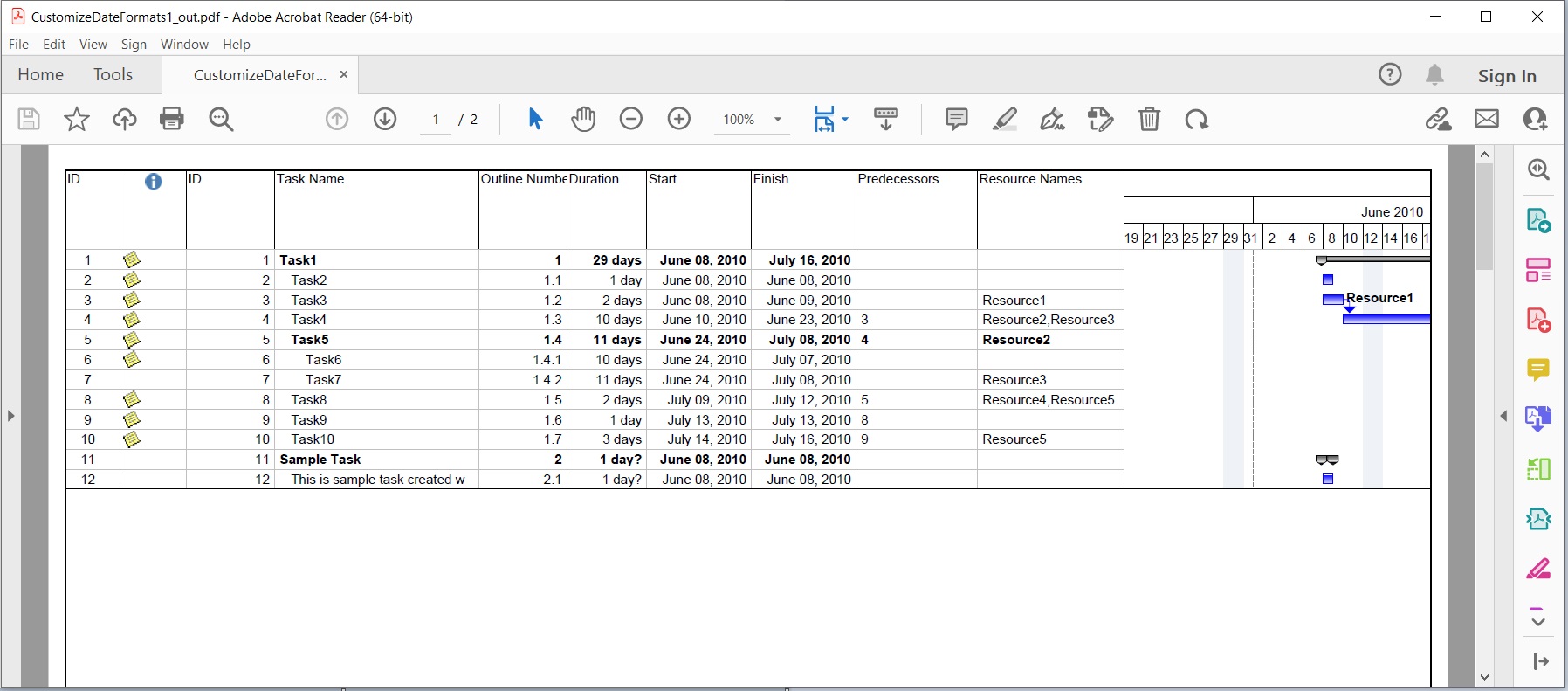
## Customize Date Format while Converting MS Project to PDF {#Customize-Date-Format-While-Converting-MS-Project-to-PDF-in-CSharp}

To customize the date format during PDF conversion, follow these steps:

1. Load the MS Project file using the **Project** class.
2. Use the **Set()** method with **Prj.DateFormat** as the key and your desired **DateFormat** as the value.
3. Finally, call the **Save()** method with the output PDF file path and **SaveFileFormat.Pdf**.

Here’s how to **customize the date format and convert MS Project to PDF in C#**:


            Customize Date Format while Converting MS Project to PDF.


## Convert MS Project to Multiple PDF Files in C# {#Convert-MS-Project-to-Multiple-PDF-Files-in-CSharp}

You can also convert an MS Project to multiple PDF pages. Here’s how:

1. Load the MS Project file using the **Project** class.
2. Create an instance of the **PdfSaveOptions** class.
3. Set **SaveToSeparateFiles** to *true*.
4. Add the page numbers you want to include in the Pages list.
5. Call the **Save()** method with the output PDF file path and **PdfSaveOptions**.

Here’s a code snippet showing **how to convert MS Project to multiple PDF documents in C#**:


## Get a Free License

You can [get a free temporary license](https://purchase.aspose.com/temporary-license) to try the library without any evaluation limitations.

## Conclusion

In this article, we covered how to:

* Load an MS Project file.
* Specify PDF saving options.
* Save the loaded MS Project as a PDF in C#.

By utilizing **Aspose.Tasks for .NET**, you can easily **convert Microsoft Project to PDF in C# .NET Core** or any other .NET framework. If you have any questions or need assistance, feel free to reach out through our [free support forum](https://forum.aspose.net/c/tasks/15).

With this guide, you'll be able to leverage the **best C# .NET library for MS Project PDF conversion** and achieve **efficient MS Project to PDF conversion** with ease. Don't hesitate to explore the **Aspose C# MS Project PDF Converter Library** to streamline your project management processes.